Table of Contents
TL;DR
- A WordPress plugin is a small program that adds a feature to WordPress. The plugin runs with the same access to the site’s data and files as WordPress itself. Plugins are powerful for that reason. They are risky for the same reason.
- The right number of plugins is the smallest number that does what the site needs. Plugin count discipline is a performance and security posture, not a minimalist preference.
- The irreducible list for a small site in 2026 covers five functional categories: backups, security monitoring, forms, caching (only if the host does not provide it), and search-and-AEO output. The list names functions, not specific plugins.
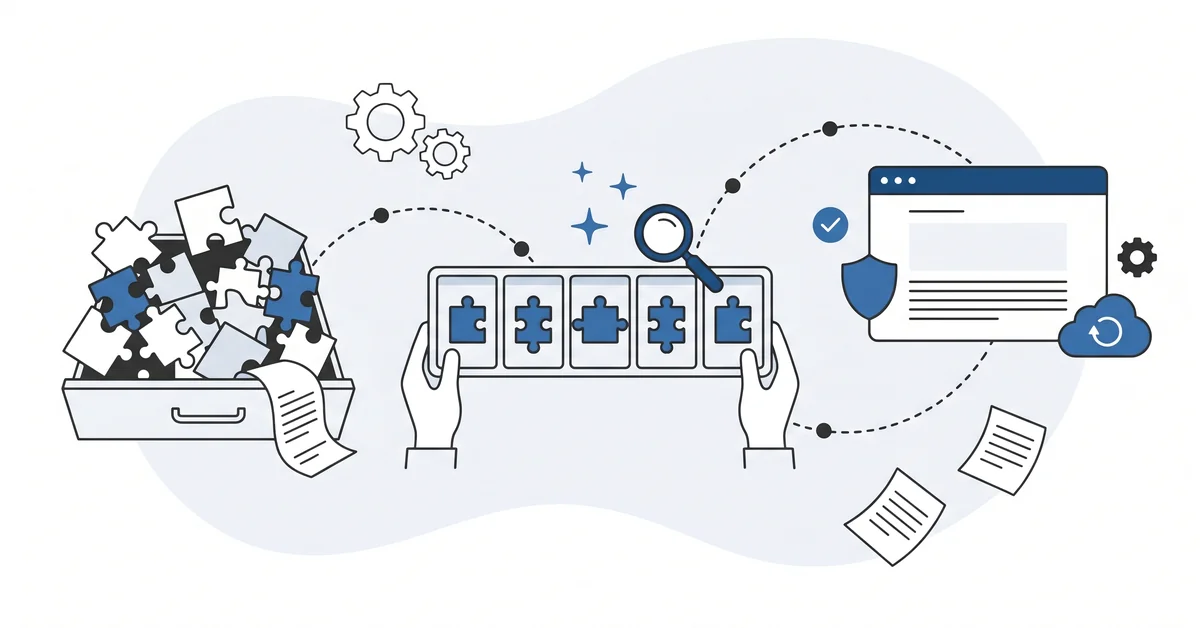
- The over-installed pattern is recognizable — a page builder layered on the block editor, two search tools running side by side, a social-share bar, a slider, a related-posts widget, a speed-optimization plugin on top of a caching plugin already doing the same job.
- One deactivation a week, repeated for a month, is the path most small sites can actually walk to a clean plugin list.
Open the Plugins screen on your WordPress dashboard right now. Count the active plugins. If the count is over a dozen, ask whether you can name what at least half of them do.
If you cannot, the dashboard is running the most common WordPress plugin shape. The accidental kind.
The accidental shape is not a personal failing. It is what happens when each new feature on the site comes from a listicle found in the moment. A contact form.
A newsletter signup. A social-share bar. A related-posts widget.
A slider on the homepage. Each plugin is three minutes of installation. Twelve months later the dashboard runs eighteen plugins, none chosen with a framework, several already abandoned by their authors.
That eighteen-plugin Plugins screen is what "essential WordPress plugins for beginners" usually produces. The listicles are written for clicks. The plugins get picked once and never re-evaluated. The dashboard fills up with tools nobody chose with a framework.
This post is about the shorter list. Five functional categories that any small site needs covered. The honest answer to "which plugin in each category" is a six-signal check. Not a listicle recommendation that may be three years old by the time you read it.
Why does the plugin question feel paralyzing for a beginner?
A search for "best WordPress plugins" returns more than 80 million results. The first page is dominated by listicles three or four years old, recommending plugins that may have shipped no updates since the post was written.
Most beginners install the first six plugins from the first listicle they read. Then they add another six over the next year as new features come up. A checkout flow needs an e-commerce tool.
A newsletter signup needs a form-builder upgrade. A comment section needs a spam filter. A related-posts widget seems like a small addition.
By month twelve the site runs eighteen plugins. None chosen with a framework. Several already abandoned by their authors.
That is the paralysis. Not too few options. Too many options, none of which come with a way to decide.
The fix is not another listicle. The fix is a shorter list of functions the site actually needs. The fix is also a check you can run for any plugin in any category to decide whether the specific tool is the right one.
What does "essential" actually mean for a small WordPress site?
A function the site cannot run without, in the form a small site actually needs.
Backups are essential because nothing else in the toolbox restores the site after a server failure, a bad update, or an attacker getting in. Patchstack counted 6,700 new WordPress vulnerabilities in the first six months of 2025. Plugins held 89% of those.
The hardening checklist for a small WordPress site groups into six categories. Recovery readiness — the off-site backup discipline — is the one that decides whether the site comes back the day something goes wrong.
Security monitoring is essential because the public WordPress login page invites brute-force attempts the moment the site goes live. The site does not need a fortress. It needs a tool that limits login attempts, watches the file system for unexpected changes, and notifies you when something looks off.
Forms are essential because the contact route has to work. A site that cannot collect a question or a quote request is missing the basic mechanism for turning visitors into clients.
Caching is essential when the host does not provide it at the server level. Managed WordPress hosts usually do. Basic shared hosts usually do not. The category exists, but the plugin in it is conditional on the host.
Search-and-AEO output is essential because the site cannot reach an answer engine without the right structured data on the page. The plugin emits the structured-data markup, the answer-engine question phrases, and the metadata. Without it, the site is invisible to the chat surfaces and the AI Overviews block.
Five functional categories. The list is short by design.
What is the irreducible plugin list for a small site in 2026?
Five plugins, picked from those five categories.
A backup tool that ships off-site copies on a schedule. The off-site part matters. A backup that lives only on the same server as the site is not a backup — it disappears when the server does.
The tool has to send the backup to a separate location, like a cloud storage service or a remote destination. It also has to verify that the copy is complete.
A security tool that monitors the login page and the file system. The basics: limit failed login attempts, require two-factor authentication on the admin account, alert you when a core file changes unexpectedly. The tool does not have to do everything. It has to cover the front door.
A forms tool that handles a contact form without leaking data. The form has to send to your email and store a record on the site. It has to validate input, block spam without making real visitors solve puzzles, and respect the privacy expectations of the country you are in.
A caching layer, but only if the host does not already provide one. Open the host’s dashboard. Search for "page caching" or "object caching" in the host’s feature list.
If the host runs caching at the server level, you do not need a caching plugin. If the host does not, install one and configure it to cache for thirty minutes by default.
A search-and-AEO output tool that emits structured data the answer engines read. The tool fills in the structured-data markup, the meta description, the social-card text, and the question-and-answer markup the chat surfaces consume. Without it, the site has no way to be cited.
Each category names a function. The specific plugin in each category is a six-signal-check decision — active install count, last update, tested-with-WordPress version, support thread activity, author identity, ratings distribution. The full walkthrough on running that check before you install lives in the public-record check for a WordPress plugin.
Where do most beginner sites add plugins by mistake?
The over-installed pattern is recognizable. Six common shapes.
A page builder layered on top of the block editor when the editor would have done the job. The page builder loads its own framework on every page, registers its own hooks, and slows the site by half a second. The block editor that ships with WordPress core handles most of what a small site needs without the extra weight.
A second search-and-AEO tool installed alongside the first. A forum post said the second one was "better at meta descriptions." The two tools fight for the same database row. They ship duplicate structured-data markup. They double the dashboard surface.
A social-share button bar that loads tracking scripts no visitor uses. The buttons look professional in the screenshot. The data on actual click-through is sobering — most small business sites see almost nobody click them.
A slider plugin on the homepage that auto-rotates through three or four "key messages." The slider hurts page speed, hurts mobile readability, and hurts conversion. Static hero sections outperform sliders on every metric small sites care about.
A related-posts widget that runs an unindexed database query on every page load. The widget feels free. The query is not.
A speed-optimization plugin installed on top of a caching plugin that is already doing the same job. The two tools step on each other. The second one rarely makes the site faster, and sometimes makes it slower.
Each one is small. Together they double the page weight.
How do you decide whether a "nice-to-have" plugin earns its place?
Three questions, in order.
Does the plugin replace something you are paying a person to do, or a job you are doing manually that costs real time? A backup automation tool replaces the manual export-the-database-to-a-file workflow. A form builder replaces the awkward "email me at this address" line on the contact page. The plugin earns its place when there is a clear job it is doing.
Has the developer shipped a release within the last ninety days, with a public changelog and an active support thread? Ninety days is the comfortable window for a maintained plugin. A plugin that has not shipped an update in over a year is usually abandoned. An abandoned plugin is a future-tense problem regardless of how well it works today.
Will you notice if you uninstall it after a week? This is the honest one. Take a backup, deactivate the plugin, browse the public-facing pages of the site for ten minutes.
If nothing visible has changed, you have your answer. Many "nice-to-have" plugins fail this test, and the failure is the verdict.
Two yes answers on the first two and a confident "yes" on the third is the bar for keeping a non-essential plugin. Anything weaker is a candidate for the uninstall list.
What about AI-recommended plugin lists?
AI chats will happily produce a list of "the ten best plugins for a small business WordPress site." The list is usually plausible. The plugins it names are well-known. The descriptions sound reasonable.
The risk is that an AI tool can recommend plugins from training data months or years out of date. A plugin abandoned eighteen months ago can still appear at the top of the answer. The chat learned from sources that recommended that plugin when it was alive. The chat has no live signal on whether the developer is still shipping or whether the support forum has gone silent.
The fix is the same six-signal check. Run it on every plugin the AI names before installing. Open the WordPress directory page. Read the last-updated date.
Sample the recent 1- and 2-star reviews. Look at the support thread activity. Confirm the developer is still answering questions.
The pattern that catches most beginners is treating the AI list as a verdict instead of as a starting list of candidates. The candidates are useful, but the verdict has to come from the live record. AI accelerates the recommendation. The public-record check still owns the install decision.
If the AI recommends a plugin that fails the public-record check, the training data is older than the plugin’s last release. The signal is useful. It does not mean AI is wrong about WordPress in general. It means the recommendation is one round older than the live state of the WordPress directory.
Other questions worth answering
How do you isolate which tool is causing a bug after a recent install?
The bisection method names the culprit. Deactivate every plugin you installed recently, then reactivate them one by one, watching for the bug to return. If the bug shows up the moment a particular plugin re-activates, that plugin owns the conflict.
If the bug stays gone with every plugin off, switch to a default WordPress theme and try again. WordPress’s own Site Health screen sometimes names the conflict in 2026.
What happens to security risk when you switch off a tool but keep the code on your server?
Short answer: risk stays. Long answer: an inactive plugin’s code lives on the server. If you stop updating because you forgot the plugin was installed, a vulnerability disclosed later still sits in those files. The 2024-2025 supply-chain incidents in WordPress’s plugin world proved the point.
The safer move is delete, not deactivate. Deactivation keeps the plugin around for quick reactivation. Deletion removes the files from the server.
How does the toolset change for an online shop or membership website?
In 2026 more plugins are needed, with a different posture on caching. An online shop adds an e-commerce engine like WooCommerce, a payment gateway, and a tax plugin. A membership site adds an access-control layer and email automation.
The irreducible five still apply. The caching plugin behaves differently because logged-in pages cannot be cached aggressively. Performance work shifts toward the database as the cart and member tables grow.
Which tools should update automatically, and which need a human eye?
Two categories belong on auto-update: security tools and backup tools. The e-commerce engine, the page builder, and anything touching checkout stay on manual. Auto-updates close the gap between a vulnerability disclosure in roughly 2025 and a patch landing on your WordPress site.
The trade-off matters. Auto-updates can occasionally ship a breaking change that takes the site down. Confirm an off-site backup exists before flipping the switch on any plugin.
Which plugin should you deactivate first?
Open the Plugins screen on the dashboard. Read the list. Find the one you cannot remember installing, or the one that controls a feature you are not using anymore.
Take an off-site backup before you touch anything. The five-step safe-update workflow walks through the discipline that applies to deactivations the same way it applies to updates. Deactivate the plugin you picked. Browse the site for ten minutes — the homepage, the contact form, the most-visited blog post, the checkout if you have one.
If nothing on the public-facing pages looks different, uninstall the plugin. If something does break, the deactivation already told you what the plugin was doing. Reactivate it. Put it on a list of "tools earning their place" so you do not deactivate it by accident on a future round.
The smallest plugin list that does what the site needs is the goal. One deactivation a week, repeated for a month, is the path most small sites can actually walk. Five plugins from the irreducible list, plus three or four nice-to-haves that pass the three-question discipline, plus the WordPress core. That is a small site in 2026, running clean.
The security category on the irreducible list points to a hardening discipline. Login lockdown. File-system monitoring. Off-site backup.
Update cadence. Read those next if security is the category you have been putting off. The other two adjacent topics are the plugin public-record check and the five-step safe-update workflow already linked above.
Want a calm second opinion before you click Deactivate? You can contact me here. Send me your Plugins-screen list and the features you actually use.
I will name which plugins are doing real work and which can come off on the next pass. There is no pitch, no upsell, and the conversation is free.