Table of Contents
TL;DR
- WordPress troubleshooting feels scarier than it should because the warnings the system sends are loud only when they are unhelpful. A calm starting point fixes that.
- Four things usually go wrong on a small WordPress site. Plugin conflicts. Theme regressions. Slow page loads. Login or admin failures. Most "WordPress is broken" reports map to one of the four.
- The fastest plugin-conflict diagnostic is to sort the Plugins screen by Last Updated and deactivate the most-recent one first. The recently-updated plugin is the suspect about seventy percent of the time.
- The white screen of death is solved by setting WP_DEBUG to true in wp-config.php and reading the PHP error that appears in its place. The error names the file.
- AI accelerates the read of error messages, Query Monitor panels, and plugin changelogs. AI cannot see your live site or reach your database. You keep the verdict.
A small business owner I worked with last spring opened her dashboard on a Wednesday morning. She saw a white page where her homepage used to be. The dashboard was also blank.
She had not touched the site in three days. Nothing had changed on her end.
The fear is not technical. It is the absence of a starting point. WordPress sends loud warnings only when the warning is unhelpful, and the silence after a real failure feels worse than the warning would.
There is a calm starting point. Most "the site is broken" emergencies on a small WordPress install map to one of four problems. The first one is right most of the time. Sort the Plugins screen by Last Updated, deactivate the most-recent plugin, reload the homepage, and the site is usually back in two minutes.
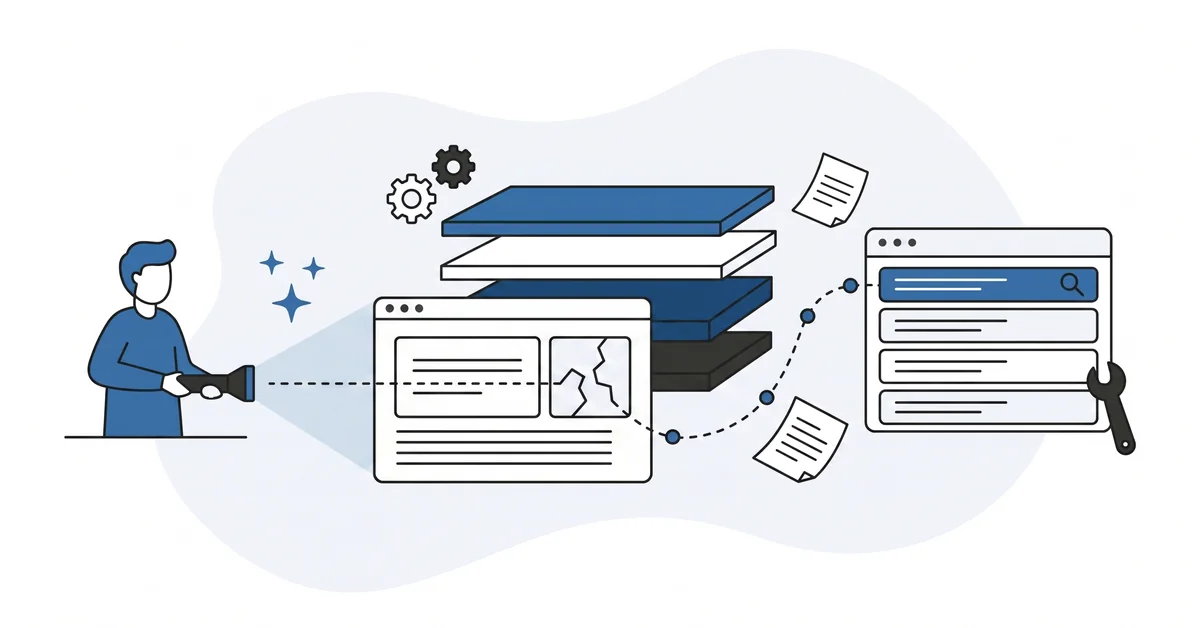
This post walks the calm starting point. It is meant for the beginner who needs a flashlight, not a developer.
Why does troubleshooting WordPress feel scarier than it should?
A small business owner stares at a white screen on her homepage. She did not change anything. The site changed on its own.
The dashboard is also blank. She has no error message, no clue what broke, and a customer email arrives in the same minute asking why the site is down.
The fear is not technical. It is the absence of a starting point. WordPress can show error messages, but the default install hides them in production for a good reason.
Error messages leak file paths and stack traces that an attacker can read. The "good for security" choice is "bad for diagnosis" until you turn debug mode on.
A second source of the fear is the layered nature of the stack. WordPress sits on top of PHP. PHP sits on top of the web server.
The web server sits on top of the operating system, which sits on top of the host. A failure in any one of those layers shows up as a broken site. Without a triage map, every layer is the suspect.
The third source is unfamiliarity. Beginners log in, see a tidy dashboard, and assume the dashboard is the whole system. When the dashboard disappears, the system feels gone too.
It is not. The files and the database are still there. The dashboard is just one window into them.
The calm starting point is to remember that. WordPress is not gone. One layer between you and the homepage is misbehaving. The job is to find which layer.
What are the four things that usually go wrong on a small WordPress site?
Four problems cover almost every "the site is broken" call from a small-business owner.
Plugin conflicts are first. A plugin update broke something. A newly installed plugin broke something.
Two plugins that worked fine alone now break the site together. Plugin conflicts are by far the most common WordPress trouble.
Theme regressions are second. A theme update changed a stylesheet path. The hero image moved.
The footer disappeared. The site loads but the design is broken. Theme regressions hit less often than plugin conflicts because themes update less often.
Slow page loads are third. The site loads, but the homepage takes ten seconds. The dashboard takes twenty.
Visitors leave before the page renders. Slow loads usually trace to caching gaps, image weight, or one plugin doing N+1 database queries.
Login or admin failures are fourth. The admin password reset email never arrives. The two-factor app is on a phone you no longer have.
There is a fifth failure that hides better than these four. The form on the site still says thank you, but the message never reaches your inbox. The case of a contact form dropping messages is silent by design. Nobody complains, because the sender thinks the note arrived.
The "Lost your password" link returns a generic error. The site is up for visitors, but you cannot log in to fix anything.
The four-layer trouble surface gets you to the right neighborhood inside a minute. The four are also ordered by likelihood. Start with plugins.
Move to theme if plugins clear. Move to performance if both clear. Login problems are their own track and have their own recovery path.
How do you find the broken plugin without bisecting all afternoon?
Bisection still works. You can also speed it up.
Open the Plugins screen in the dashboard. Sort by Last Updated. The plugin that updated most recently is the suspect. The recently-updated plugin is the suspect about seventy percent of the time, in my experience reading WordPress trouble tickets for small sites.
Deactivate that plugin alone first. Reload the homepage. If the site comes back, you have the answer in two minutes.
The plugin that updated this morning is the one that broke this morning’s homepage. Reactivate it on a staging copy, look at the changelog, and decide whether to roll back or wait for a patch.
If the site does not come back from the first deactivation, the recently-updated plugin was a coincidence. Reactivate it (the trouble is not there), then deactivate half the remaining plugins. Reload.
Bisect from there. Each bisection round halves the suspect pool. With twenty plugins, five rounds isolate the trouble.
The slower-than-bisection mistake is to deactivate plugins one at a time from the top of the list. With twenty plugins, the average case takes ten reactivations and reloads. The bisection cuts that to five worst-case.
The walkthrough lives in the AI-assisted plugin conflict diagnosis article. The deeper version uses an AI chat to read recent reviews and changelog entries for the suspect plugin. You read the verdict while the next bisection step runs.
What do you do when the white screen of death appears?
Three steps in this order.
Step 1. Turn on WordPress debug mode. Edit wp-config.php through your host’s file manager. Find the line that defines WP_DEBUG and reads false.
Change false to true. Save the file. Reload the page. The white screen turns into a PHP error message that names the file that crashed.
Step 2. Read the error. The error names a file path and a function.
The file path is usually inside wp-content/plugins/<plugin-slug>/ or wp-content/themes/<theme-slug>/. The plugin or theme name in the path is the suspect.
Step 3. Force-deactivate the suspect. The dashboard is not loading, so you cannot deactivate from there. Open the host’s file manager and rename the plugin folder.
WordPress force-deactivates a plugin whose folder it cannot find. Reload the homepage. The site comes back. The plugin is off, the dashboard is back, and you have the name of the trouble.
A common variant: the error names a theme file. Force-deactivating a theme requires renaming the active theme’s folder. WordPress falls back to the default theme.
The site comes back ugly but functional. You can then re-install the theme from a fresh download or pick a different one.
The white screen looks fatal because it is silent. The fix is to make it speak. WP_DEBUG is the switch that makes WordPress speak.
Why does the site get slow, and what should you check first?
Three usual suspects.
The home page sends too many database queries. A "related posts" plugin or a slider plugin is doing one query per related item, multiplied across the page. Twenty related items is twenty queries. Twenty queries is fifteen seconds on a budget shared host.
The home page weighs four megabytes because nobody compressed the hero image. The image looks fine on a desktop with a fast connection. On a phone over 4G, the page never finishes loading. Image weight is the single biggest performance variable on most small WordPress sites.
There is no caching plugin running. Each visitor triggers a full PHP and database round-trip. With caching, the same visitor gets a static HTML file in twenty milliseconds. Without caching, each visit does the full work again.
Install Query Monitor (a free debug plugin in the WordPress directory). Reload the homepage once while logged in. Open the Query Monitor toolbar at the bottom of the screen. The biggest single offender shows up at the top of the panel.
The full triage walkthrough lives in the WP performance triage article. The article walks all three suspects in order with screenshots.
When does a problem belong to your host instead of your site?
Three signs.
The site is timing out instead of returning an error. WordPress problems usually return an HTTP 500 or render a partial page. Host problems usually return a connection timeout or a generic "Service Unavailable" page. If WordPress never gets a chance to respond, the trouble is below WordPress.
Multiple sites on the same shared host are also down. If your friend’s WordPress site on the same host is also unreachable, the host is the problem. WordPress on your site has not changed — the layer beneath it has.
The host’s status page reports an incident. Most reputable hosts publish a status page at status.<host-domain>.com. A pinned incident at the top of the page is the answer. You can stop diagnosing your site and wait for the host to fix theirs.
When the trouble belongs to the host, the right move is patience plus communication. Open a support ticket so they know your specific site is affected. Check the status page once an hour. Do not run diagnostic tools on your site — the symptoms are not coming from your site, and the diagnostics will mislead you.
A site that is timing out under load (slow rather than down) sits on the boundary. It might be a host capacity issue. It might be a slow plugin saturating the PHP workers. The Query Monitor panel from the slow-page check usually reveals which.
What can AI help with during troubleshooting, and where does it fail?
AI helps with reading.
Paste a PHP error message into an AI chat. You get a plain-English summary, the likely plugin file involved, and a suggested first-pass fix. The AI does this in under a minute, faster than you would search the WordPress support forum.
Paste a Query Monitor panel screenshot or text dump. You get a ranked list of the slowest queries with each query name decoded into plain English. The AI cannot run the queries again or measure them, but it can read what you already measured.
Paste the changelog entries for the suspect plugin you found via the Last-Updated bisection. You get a summary of what changed in the most recent release, with notes on which changes are most likely to break a routine site.
AI fails on issues it cannot see. A database problem behind the dashboard. A hosting incident with no public status page. A theme regression that requires loading the live site to spot.
The AI tooling will confidently suggest changes that worked elsewhere but break your specific environment. The disconfirming voice on plugin evaluation applies here too. AI accelerates the read — you keep the verdict.
The honest framing is the same as elsewhere in WordPress practice. AI is a useful flashlight in a familiar room. It is not a replacement for someone who knows your specific site.
Other questions worth answering
How do you recover access when locked out of the admin area?
Three paths exist for locked-out admin recovery. Open the wordpress.org password-reset email if it arrives in your inbox. If not, edit the user record via your hosting control panel database tool. As a last resort, add a fresh admin account through a WP-CLI command via shell access.
What role does a staging environment play when testing fixes?
The role is a safety net before deployment. A staging environment is a private copy of your live site, used to test changes before they reach visitors.
Most managed hosts include a one-click staging option in their dashboard. The 2026 WordPress plugins substrate names bisection as the standard plugin diagnostic. Staging lets you run that check before visitors see breakage.
When does it make sense to escalate to a developer?
Short answer: when the layered triage clears and the site is still down.
Long answer: three signals matter. The error persists after every cause you can name. The recovery needs database access you are afraid to use. The outage cost exceeds your developer rate after roughly two hours.
What tools track extension vulnerabilities once a release ships?
Two databases are worth following for any active install. WPScan publishes a vulnerability feed for WordPress extensions and themes. Patchstack runs a similar feed with paid alerting tiers.
Either one will warn you within days when a new install develops a published vulnerability. The 2026 WordPress security substrate names update discipline as the primary defense.
Which check should you run first when something stops working?
Sort the Plugins screen by Last Updated and look at the first row.
The plugin that updated most recently is the suspect about seventy percent of the time. Deactivate it alone. Reload the homepage.
If the site comes back, you have the answer in two minutes. You can roll forward by reactivating, applying the staging workflow, and trying the update again with attention.
If the site does not come back, the trouble is somewhere else. Reactivate the plugin (the trouble is not there) and walk the four-layer triage. Plugin first.
Theme second. Slow loads third. Host fourth.
If the dashboard itself is not loading, switch to the white-screen workflow. Edit wp-config.php, set WP_DEBUG to true, reload the page, and read the PHP error that appears. The error names the file. The file is your starting point.
The calm flashlight is the whole posture. WordPress is not gone. One layer is misbehaving.
The first check usually finds the layer in two minutes. The remaining checks find it in twenty.
Want a calm second opinion on a stubborn WordPress trouble, or help reading a PHP error you cannot decipher? You can contact me here. Send me the error text and the suspect plugin name.
I will tell you which layer to look at first and what to test before touching production. There is no pitch, no upsell, and the conversation is free.