Table of Contents
TL;DR
- A WordPress developer running ten client sites with five weekly maintenance tasks per site clicks through roughly 250 wp-admin pages per week. Most of those tasks have a one-line WP-CLI equivalent the developer never wrote down. The constraint is not the syntax. The constraint is the time to look up the exact flag and verify dry-run output before production.
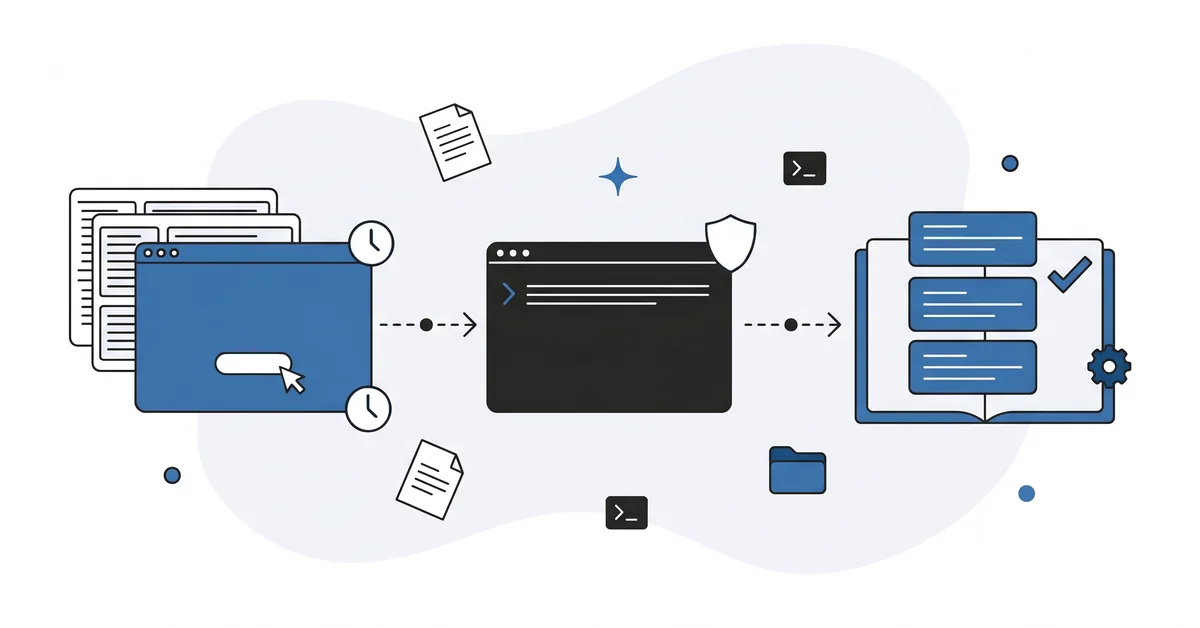
- An AI WP-CLI admin scripts workflow reads three artifacts — the task description in plain English, a sample input (URL pair, user IDs, plugin slug, option name), and your WP-CLI version. The chat returns a two-step output. The dry-run command for safe preview. The live command that applies the change. Plus the idempotency check that confirms the change held.
- Five-step workflow. Describe the task. Provide a sample input. Run wp –info on the live system and paste the version into the prompt. Ask for the dry-run plus the live command plus the idempotency check. Run –help on the live system to confirm the subcommand exists in your version before running anything.
- Three traps. Trusting the chat’s syntax without running –help on the live system (commands evolve, and the training corpus may pre-date a deprecation). Skipping the dry-run flag because the operation feels safe. Treating the one-liner as a finished tool rather than a runbook entry. The next operator finds it only if you log it.
- A WP-CLI one-liner is the shortcut you show the next operator, not the one you memorize for yourself. The runbook entry is the teaching artifact. The keystrokes in your head are not.
A WordPress developer running ten client sites with five maintenance tasks per site per week clicks through roughly 250 wp-admin pages per week.
That number sits invisibly inside most agency workflows. The plugin update on Site 1, then Site 2, then Site 3. The user role change on the new editor. The option flip on the contact form.
The search-replace after the staging URL changed. The export-and-download for the Tuesday backup verification.
Most of those tasks have a one-line WP-CLI equivalent. Most agencies never write the equivalent down.
This piece is about how an AI chat reads three things. Your task description. A sample input. Your WP-CLI version.
The chat returns a copy-paste-ready snippet with the dry-run command first, the live command second, and an idempotency check that confirms the change held.
Why does manual wp-admin not scale past three sites?
The constraint is not skill. The constraint is time.
The agency operator knows wp-admin well enough to do the task by hand. The hands-on click sequence is faster than learning a new tool when the count is one.
At three sites, the click sequence is still tolerable. At ten sites, the same task takes thirty minutes of repetitive UI work. At thirty sites, the math becomes punitive.
The WordPress CLI handbook common-tasks guide names eight command categories with documented syntax: plugins, themes, core, users, posts, comments, options, search-replace, and database. Each category covers the operations the agency operator does manually through wp-admin every week. Every category has the equivalent terminal command.
The terminal command is faster, scriptable, version-controllable, and runnable across multiple sites in one batch. The agency operator knows this. The agency operator does not have time to look up the exact syntax, confirm the dry-run flag, and test on staging before running on production. The lookup time is the actual barrier.
That barrier is exactly what an AI chat removes.
What does an AI-drafted WP-CLI command actually do?
A two-step output. The dry-run command first, then the live command.
The chat reads three artifacts. The task description in plain English. A sample input. The WP-CLI version on the live system (run wp --info to read it).
The sample input is whatever the task needs — the URL pair for a search-replace, the user IDs for a role change, the plugin slug for an update, or the option name and target value.
The chat returns the dry-run command for safe preview. Then the live command that applies the change. Plus the idempotency check — a wp query that confirms the change actually held in the database.
The developer reads the snippet, runs the dry-run, verifies the preview output matches the expected change, and runs the live variant. The chat does the syntax matching. The developer does the verification.
The point is to compress the lookup-syntax-test-staging-run-production sequence from twenty minutes per task to about three.
How do you turn a repeat task into a WP-CLI one-liner?
Five steps. None of them needs more than fifteen minutes.
Step 1 — describe the task in plain English. One sentence. The reader of the runbook should know what the command does without reading the command.
Example one — bulk-update all plugins to latest version across a multisite network. Example two — change role for users matching a meta value. Example three — replace staging URL with production URL after migration.
Step 2 — provide a sample input. The minimum data the chat needs to draft a real command — the URL pair for search-replace, the user IDs for a role change, or the plugin slug for an update.
Real values, not placeholder values. The chat will pattern-match the actual structure.
Step 3 — run wp –info on the live system. Paste the output into the prompt. WP-CLI version, PHP version, WordPress version, OS. The chat’s training corpus may pre-date a deprecation or a flag change in a recent WP-CLI release.
Step 4 — ask for three outputs. The dry-run command, the live command, and the idempotency check. State the expected scope explicitly — single site, multisite network, single subsite, all sites in a portfolio. The chat will tune the command to the scope.
Step 5 — run –help on the live system. Before running the live command, run the chat’s suggested subcommand with –help on the actual server. Confirm the flags exist, the syntax is current, and the subcommand has not been deprecated. About thirty seconds — saves the rollback that comes after a wrong-flag command.
wp --info
wp search-replace --help
wp search-replace 'staging.example.com' 'example.com' --dry-run --all-tables
wp search-replace 'staging.example.com' 'example.com' --all-tables
wp option get siteurl
About fifteen minutes from "I keep doing this" to a tested one-liner the runbook can hold.
When does a one-liner become a batched script?
When the operation runs against more than roughly 5,000 records or touches data the front-end caches.
Single-shot commands work for small operations. The wp search-replace on a 500-row database. The wp user update on a list of fifty users. The wp option update on a single setting.
Batched commands are required at scale. WordPress VIP’s at-scale CLI documentation names the production-tier patterns. The bookend functions are start_bulk_operation() and end_bulk_operation(). They must wrap any custom command operating on large datasets.
A sleep call between batches helps with cache re-validation and data replication loads. Cache invalidation runs explicitly rather than letting WordPress thrash through millions of cache keys. The pattern mirrors long-running database migration discipline — batch, sleep, log progress, and support resumption from a known-good checkpoint.
The AI chat will not include those patterns by default unless the prompt asks for them. Ask explicitly when the operation crosses 5,000 records. The chat will draft the bulk-operation wrapper, the sleep cadence, and the resumability log if you ask. The chat will skip them if you do not.
The AI-drafted backup verification plan takes the same explicit-ask discipline into monthly restore work.
What can go wrong with this approach?
Three traps catch developers who already know WP-CLI but skipped the AI-draft pass.
Trap 1 — trusting the chat’s syntax without –help on the live system. WP-CLI commands evolve. A flag deprecated in a 2025 release may still appear in the chat’s training corpus as the standard pattern. Run wp
Trap 2 — skipping the dry-run because the operation feels safe. Search-replace without –dry-run on production has failure modes no rollback fully reverses. The dry-run output is small, fast, and free. Run it on every search-replace. Run it on every option update that touches a setting whose old value you cannot reproduce by hand.
Trap 3 — treating the one-liner as a finished tool. The next operator finds the command in the runbook only if you log it there. The command in your terminal history is not the same as the command in the runbook. A defensible WordPress agency ships every AI-drafted one-liner to the runbook. Task description, sample input, and dry-run output travel with the command as the test fixture.
Why is a WP-CLI one-liner a shared tool rather than a personal shortcut?
A WP-CLI one-liner is not a personal shortcut. A WP-CLI one-liner is a shared tool.
The shortcut you memorize lives in your head. The shortcut in the runbook lives in the team’s tooling. The first version of any command is for you. The second version is for the next operator.
The second version carries the task description, the sample input, the dry-run pattern, and the idempotency check. The two versions are different artifacts.
A defensible WordPress agency treats the runbook as the artifact that travels with the team. New operator reads version 1.0 on day one. Version 1.1 ships when WP-CLI 2.10 changes a flag. Version 2.0 ships when the agency adds the multisite network that needs the bulk-operation wrapper.
Other questions worth answering
How do you keep a history of every live run for review later?
Pipe each live run through tee to a dated log file in the runbook directory. Per WPThrill’s 2026 WP-CLI beginner-to-pro tutorial, command-based workflows support bash loops that capture the output. The dated log lives alongside the snippet that produced it, so reviewers can trace what ran and when.
Which file format should hold the runbook entry for long-term reuse?
Markdown plus a fenced bash code block. The plain-text format survives version-control diffs cleanly. The fence preserves the exact flags the chat produced.
Two artifacts travel with each entry — the task description and the idempotency check.
Markdown is portable across every editor and across every publishing surface the team uses.
What does the workflow look like when SSH access is denied by the host?
Browser-based shells fill the gap. Kinsta, WP Engine, and similar managed hosts ship web terminals that run WP-CLI without an SSH key. The chat’s draft transfers directly to the web terminal. Run the dry-run first and proceed with the live variant after verifying the output matches expectations.
How do you roll back if the live run damages production data?
Two prerequisites make rollback feasible. Per the WordPress CLI Handbook’s 2026 common-tasks guidance, the pre-run database export captured by wp db export backup.sql before the destructive run. The dry-run log that recorded which rows would change.
Restore the export to a fresh database and replay any writes that landed after the destructive run.
Which click should become your next command?
The one you do most often that has the simplest sample input.
Bulk plugin update across a portfolio. Role change for a batch of users. Option update for a setting that drifted across sites. Search-replace for a URL change after a hosting migration.
When the task lives inside wp-admin rather than the terminal, the AI-drafted wp-admin automation snippets walkthrough covers the parallel pattern.
Pick the click that feels most automatable. Draft the one-liner. Log it in the runbook with the task description, the sample input, and the expected dry-run output. The next time you reach for the wp-admin page, you reach for the terminal instead.
The next post in this series covers the WordPress migration plan that often pairs with WP-CLI work. The migration plan says what changes during a host move. The WP-CLI scripts implement the changes consistently across the portfolio.
Both pieces compound. Together they replace the manual click work that consumes most agency afternoons.
If you want a calm second opinion on your first AI-drafted WP-CLI one-liner before you run it on production, you can contact me here. Send me the task description, your WP-CLI version output, and the chat’s draft command. I will read all three and tell you which flag to verify with –help before the live run. There is no pitch, no upsell, and the conversation is free.