Table of Contents
TL;DR
- WordPress 7.0, code-named Armstrong, shipped on 2026-05-20. The Command Palette now opens on every wp-admin screen with Cmd-K (or Ctrl-K on Windows). The list tables for posts, pages, and media render through the new DataViews interface.
- The buttons moved. The work did not. Editing a post, installing a plugin, and saving a setting all happen in the same places they always did.
- DataViews is a sortable, filterable React grid. The old list table is still readable, but you can also switch to a card grid, save a filtered view, and bulk-edit without a page reload.
- Plugins and themes that hooked into the old list-table classes may need an update. Most well-maintained plugins shipped a compatible release in the weeks around the launch.
- You do not have to learn the new admin in one afternoon. The Command Palette is the one shortcut that pays off on day one. Everything else can wait until you need it.
A site owner I help opened wp-admin for the first time after upgrading to WordPress 7.0 on a quiet Tuesday morning. She had read the release notes, made a backup, and clicked Update.
The dashboard loaded. Her posts were still there. Her plugins were still there.
But the Posts screen looked different, the search box behaved differently, and something called the Command Palette popped up the first time she pressed Cmd-K.
WordPress 7.0 was released on 2026-05-20 under the code name Armstrong, with the official release post crediting more than nine hundred contributors. The headline change for most site owners is not the new developer features under the hood. It is the wp-admin surface they touch every week.
The Command Palette is now on every screen. The long list tables for posts, pages, and media have been replaced by a new interface called DataViews.
So this article is for the site owner staring at a slightly unfamiliar dashboard. Where did the old buttons go? What do the new ones do? And which one matters on day one?
What changed when WordPress 7.0 shipped?
Five things, mostly. The other ninety changes are real but you will not notice them this month.
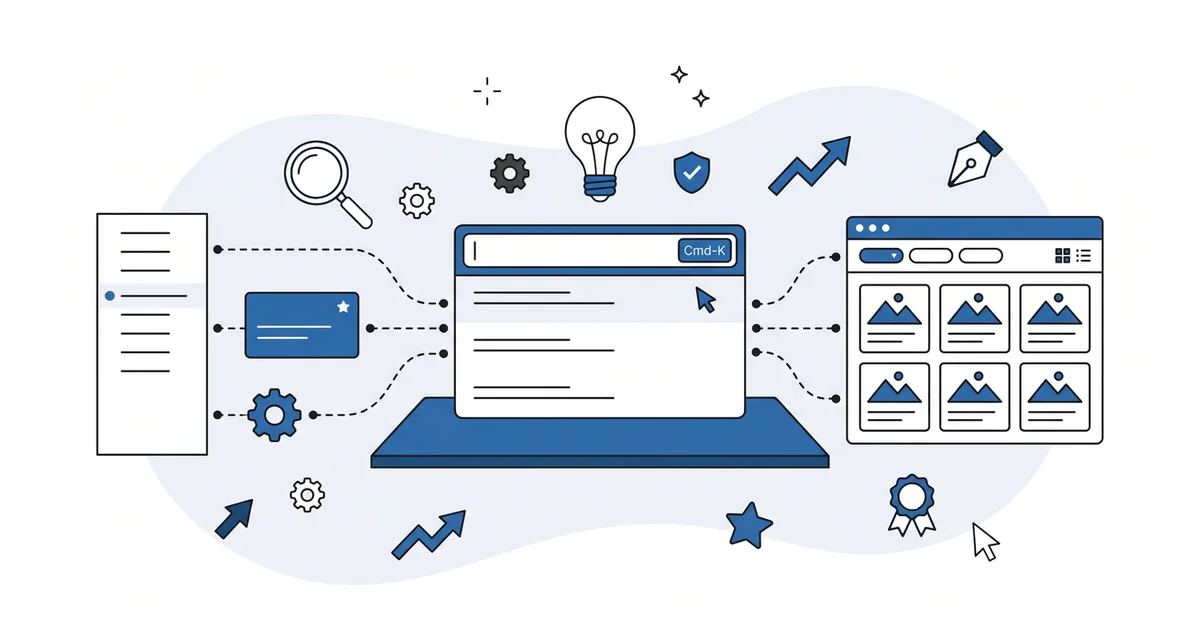
The Command Palette, the keyboard menu you may have seen in the Site Editor in earlier versions, now opens on every wp-admin screen. The list tables for posts, pages, and media use the new DataViews React interface, which sorts and filters without reloading.
There is a new Icons block in the block editor. Themes can attach CSS to individual blocks. And the minimum PHP version moved up to 7.4.
There is also a small subtraction. The first version of real-time collaboration in the block editor was removed, and the team is rebuilding it. If a plugin promised real-time collaboration based on that early surface, it stopped working at 7.0.
The developer side of the release adds three more surfaces under the hood. The WP AI Client, the Abilities API, and the AI Services Registry are addressed to plugin authors and theme builders. They matter to your site indirectly, through the plugins you install in the next twelve months. They do not change anything you click on this week.
How does the new Command Palette work?
You press Cmd-K on a Mac, or Ctrl-K on Windows. A small search box drops down in the middle of the screen.
You type what you want to do. The palette searches the wp-admin menu, the settings tree, and the current screen’s actions. It returns the matching item, and Enter takes you there.
The Command Palette is the one shortcut that pays off on day one. Once you have used it for a week, you will start reaching for it instead of the left-hand menu. It is faster, and it is the same shortcut on every screen.
There are two small habits worth picking up. Hit Cmd-K from the dashboard and type the noun (posts, media, plugins) to jump anywhere. Hit it from inside a post and type the verb (publish, trash, schedule) to act on what you have open.
Why do the list tables look different now?
The new DataViews interface is the replacement for the long list tables you used to scroll through.
The Posts screen still opens to a list. Each row still shows the post title, the author, the categories, and the date. What is new is the view-switcher in the top corner.
You can flip the list to a card grid, where each post becomes a small tile with its featured image. The grid is useful when you have a hundred posts and want to scan visually for the one you are looking for.
The filter bar is also new. You can filter by author, by status, by date range, and by category, all at once, without a page reload. You can save the filtered view as a preset, so a Friday review of recent drafts is one click instead of three.
The bulk-edit experience is also smoother. Select a few posts, change the category or the author, and the change happens without reloading the page. You can undo immediately if you picked the wrong category.
None of this is dramatic. It is the same data the old list table showed. The difference is that you can sort and filter without waiting for the page to refresh, and you can switch to a grid when a grid would help.
What about the plugins and themes you already have?
Most well-maintained plugins shipped a compatible release in the weeks around the launch. A small number did not.
The plugins most likely to need an update are the ones that customized the old list tables. Admin-column plugins, custom post type managers, and any plugin that added a column to the Posts or Pages screen are the usual suspects. The old list-table classes still exist for backward compatibility, but a few plugins extended them in unsupported ways and broke when DataViews replaced the default view.
A reputable plugin’s changelog will say "7.0 compatible" or "DataViews compatible" near its most recent release. That is the line to look for.
Themes are usually safer. The block editor’s storage format and template structure did not change at 7.0. A block theme written for 6.6 or later should keep working without edits. A classic theme is unaffected by the admin changes entirely.
The safe upgrade pattern is the same as every WordPress upgrade. Back up your site first. Read your plugin list, check that each plugin has a release dated after the launch or a note about compatibility, and update them before you update core.
The post-install habits I lay out for a fresh WordPress install are the same habits that keep an upgrade boring. If you are still finding your feet with WordPress in general, my plain-English explanation of what WordPress is sits at the entry of the path.
The new developer surfaces under the hood matter for the longer term. The Abilities API is what makes an AI assistant safely act on your site. The first wave of 7.0 AI features for site owners is the companion piece for what those new surfaces actually let you do.
Other questions worth answering
How does Armstrong’s PHP requirement affect older hosts?
Hosts running PHP below 7.4 cannot install or upgrade to Armstrong. The 2026-05-20 release raises the minimum across the board.
Managed hosts had largely moved past 7.4 well before the 2026-05-20 release, per the WordPress 7.0 Armstrong release announcement. A small share of shared-hosting plans still ran older versions. Ask your host before you upgrade.
When does a browser shortcut take priority over Cmd-K?
Outside wp-admin, the browser shortcut wins. Inside wp-admin, the palette captures the keystroke before the browser binding fires.
Cmd-K is the default on Mac. Ctrl-K is the Windows equivalent. Per the WordPress 7.0 Armstrong release announcement, the shortcut is configurable in user preferences if you want a free key.
How does a multisite network handle the Armstrong upgrade across subsites?
WordPress multisite shares one core install across all subsites. The whole network upgrades to Armstrong together when you update core. There is no per-subsite version pinning.
You can still stagger plugin and theme activation per subsite. If a subsite depends on an extension that lacks 7.0-compatibility, keep the prior version there. The 2026-05-20 release does not change that pattern.
Does the Cmd-K menu remember your recent actions across sessions?
Yes, per user. The palette stores your last several invocations. It surfaces them at the top when you reopen it.
The history lives in browser local storage tied to your user account. Sign out and the recents clear with the session. From a second device, you start fresh. Armstrong shipped this behavior on 2026-05-20.
How does DataViews compare to the older sortable interface for performance?
DataViews loads more JavaScript than the prior server-rendered interface. On a fresh page load, the wait is slightly longer. After that, sorting and filtering happen in the browser without round-trips.
On a site with hundreds of posts, the net effect is faster, because each sort used to reload the page. On a tiny site, the difference is invisible.
Where should you click first in the new admin?
Open the dashboard. Press Cmd-K. Type a noun. Press Enter.
You will land on the Posts screen, which is now a DataViews grid by default. Switch the view to "list" if you preferred the old layout, and your preference is saved per user. Try the filter bar, filter to drafts only, then save the view as a preset.
The work itself has not changed. The buttons moved. The work did not.
If the new admin still feels unfamiliar after a week, that is normal, because interfaces take longer to settle than the changelog suggests. You can contact me here, describe what feels off, and I will look at your wp-admin with you. I will tell you, in plain English, what each new piece is for.
There is no pitch and no upsell. The conversation is free and the only goal is to make your own site feel like your own site again.