Table of Contents
TL;DR
- Technical SEO is the plumbing under a small site. The same robots.txt, sitemap, page speed, and schema signals the legacy search engines read are the signals the engines now read to decide which two or three businesses to mention.
- Cloudflare data from mid-2025 found that only 37% of the top 10,000 domains it served had a robots.txt file at all. The two most-blocked bots on news sites were ClaudeBot at roughly 69% and GPTBot at 62% — often by accident.
- Three invisible blockers sit above robots.txt for many small WordPress sites. Cloudflare Bot Fight Mode, a security plugin like Wordfence, and a managed-host firewall rule can each silently kill visibility before robots.txt is ever read.
- An XML sitemap that lists tag archives, attachment URLs, or staging-residue pages wastes crawl budget on pages nobody should find. Open the sitemap, read it, and confirm it lists only the pages you want in search and chat replies.
- The one fix to make this afternoon is the three-step check — read robots.txt in a browser tab, open the WordPress Reading settings page, and run a user-agent test against your site as one of the named search bots. The rest of the checklist is for next weekend.
A small business owner asks for a WordPress agency that fixes slow sites. The chat returns three names. None of them is yours. Your site is online.
Your home page reads well. Your blog has a hundred posts. The chat surface looked, and decided you were not one of the three.
Most of the reason sits upstream of the writing. The chat could not reach your site. Or it reached the site and could not find a clean answer to lift into the reply.
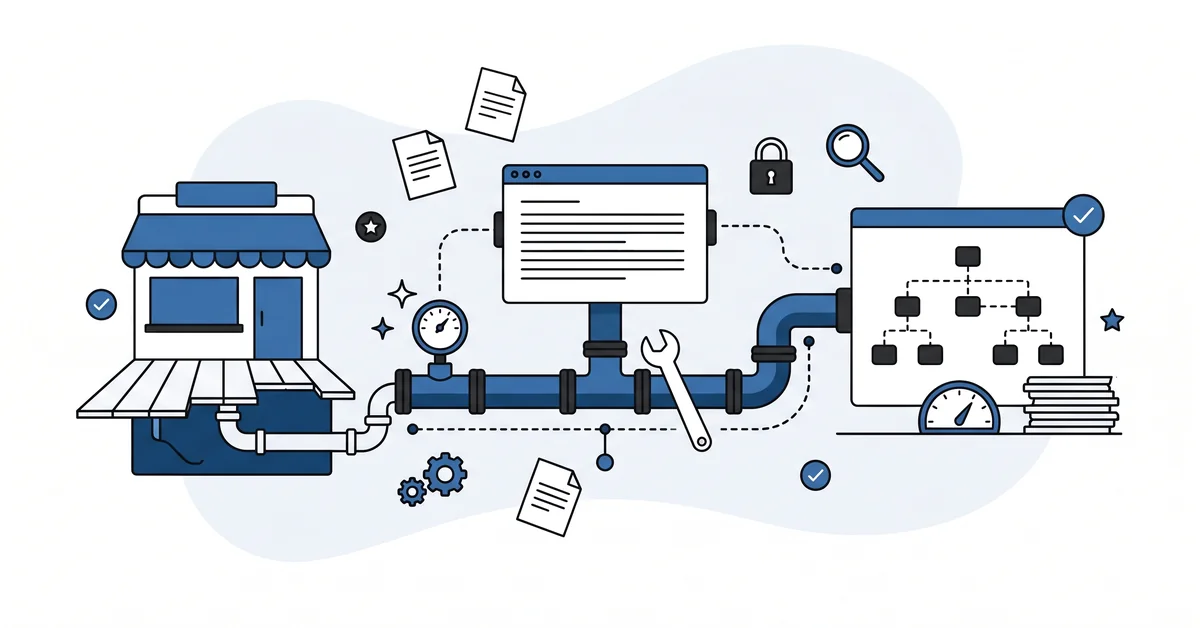
Technical SEO is the plumbing under the floorboards of a small shop. Nobody notices it until something leaks. The only person who notices the leak is the customer who walked back out. The plumbing is the same whether someone found you through Google, through an AI Overview, or through a chat reply.
The engines did not invent a new layer of technical SEO. They added one job to the existing plumbing — be reachable, be readable, be liftable. They punish a site that fails any of the three.
This piece is the short checklist for a small WordPress site. Six items. Almost all of them free. None of them require a developer if you are willing to spend a quiet Sunday afternoon with a notebook.
Why does technical SEO still matter when answer engines join search?
The plumbing did not get less important when the engines arrived. It got more important.
Google still reads your robots.txt, your sitemap, your page speed, and your schema. The engines from the major vendors now read the same files. A robots.txt that blocks GPTBot keeps OpenAI’s reader out of your site.
A bloated theme that takes seven seconds to load tells every reader the page is not worth the wait. A schema block on the FAQ section of a page hands the chat surface an answer it can lift verbatim and credit you with.
The legacy framing — technical SEO is what you do so Google indexes you — still holds. The newer framing adds one line. Technical SEO is also what you do so the engines find a clean answer to lift, with your name attached. The on-page SEO basics sit alongside the plumbing as the writing-side companion to the same goal.
A small WordPress site has the same six checks the big sites have. The advantage of a small site is that one quiet afternoon clears the whole list.
Is your WordPress site reachable to the search crawlers that send traffic back?
Two kinds of crawlers from the engines visit your site, and they are not the same.
The first kind is the search and retrieval crawler. OAI-SearchBot from OpenAI. Claude-SearchBot from Anthropic. PerplexityBot from Perplexity.
These bots read your site and decide whether you have an answer worth lifting. They send the user back to your site as a credited citation in a chat reply or an AI Overview. Blocking these bots is the same mistake as blocking Googlebot.
The second kind is the training crawler. GPTBot. ClaudeBot. Google-Extended.
CCBot. Applebot-Extended. These bots consume your content for AI model training with no link back, no citation, no attribution.
The decision on whether to allow them is a values question, not a technical one. Most small businesses gain more from training visibility than they lose from training use. Some publishers and creators take the opposite view.
The trap is that many WordPress sites block both kinds of bot at once through one wrong robots.txt rule. A blanket "User-agent: * Disallow: /" line knocks out everything. A copied robots.txt template from 2023 may target Anthropic’s deprecated user-agent strings ("anthropic-ai", "claude-web") and miss the current ones entirely.
Cloudflare data from mid-2025 found something stark. Only 37% of the top 10,000 domains it served had a robots.txt file at all. On news and publisher sites, the block rates reached 69% for ClaudeBot and 62% for GPTBot.
The fix is to write robots.txt by hand for the bots you actually have an opinion about. Per RFC 9309, the most specific rule wins. A site can disallow GPTBot for training while explicitly allowing OAI-SearchBot for search. The engines honour the named rule over the wildcard.
Which invisible blocks live outside robots.txt?
Three blockers sit above robots.txt and ignore it entirely.
The first is the content delivery network. Cloudflare Bot Fight Mode rejects automated traffic at the network edge before robots.txt is ever read. The setting is on by default for sites that signed up after July 2025.
A small WordPress site whose owner does not log into Cloudflare often has Bot Fight Mode running silently. It blocks every named search crawler before they ever see the home page.
The second is the security plugin. Wordfence, Sucuri, and the other major WordPress security plugins rate-limit any user agent that does not look like a standard browser. The default settings are conservative.
A crawler that requests three pages in a second gets a 429 status code and goes away. The plugin is doing its job. The job happens to also block the search crawler that would have cited you.
The third is the managed-host firewall rule. Most managed WordPress hosts ship a Web Application Firewall that blocks automated traffic by category. The rules are documented somewhere in the host’s knowledge base. The owner of the site rarely reads that page until something breaks.
The check is mechanical. Run a user-agent test against your site as one of the named search bots. The free tools that exist for this read the actual response your server sent.
A 200 status means the bot got the page. A 403 or 429 or 503 means one of the three blockers ate the request. The site article on local SEO basics that share the same crawler-access rules walks through the same fix for a local business.
Does your XML sitemap actually point at the pages you want found?
A sitemap is the table of contents you hand to every crawler. The Yoast plugin or the RankMath plugin or the WordPress core feature generates one for you at /sitemap.xml or /sitemap_index.xml.
The job is to open it. Read it. Confirm it lists the pages you actually want in search and chat replies.
A sitemap that lists tag archives, attachment URLs, paginated category pages, and the leftover staging-folder URL from when the site launched is wasting crawl budget. None of those pages pull anyone in. Worse, that sitemap tells the engines you think those pages matter. The signal for the pages that actually matter gets diluted.
Most SEO plugins let you exclude post types, taxonomy archives, and individual URLs from the sitemap with two clicks. The default settings are usually too generous. Start by excluding everything that is not a page or a published post.
Then add back the few category or tag archives that you actually use as landing pages. Submit the sitemap in Google Search Console and in Bing Webmaster Tools.
If your sitemap exists but is not referenced in robots.txt, add the line. "Sitemap: https://yoursite.com/sitemap.xml" at the end of robots.txt. Some search crawlers have started requesting sitemap.xml directly in the last six months. Making the file easy to find costs nothing.
How fast does the page have to be in 2026?
Page speed has not stopped being a ranking signal. The engines lift answers from pages that load. A page that times out gets lifted from elsewhere.
Google’s Core Web Vitals are still the published targets to hit. Largest Contentful Paint under 2.5 seconds. Interaction to Next Paint under 200 milliseconds.
Cumulative Layout Shift under 0.1. Run your home page and your two most-visited pages through PageSpeed Insights. The report names the offenders.
The three fixes that pay back hardest on a small WordPress site have not changed in five years. Compress the images. Install one well-maintained caching plugin. Drop the bloated multi-purpose theme.
Image compression is the single biggest free win. A 4MB hero image on a small-business home page is the most common cause of a slow page on the planet. The major image-optimisation plugins — ShortPixel, Imagify, Smush — handle the heavy lifting and serve modern formats like WebP automatically.
Caching takes one plugin. WP Rocket if you can pay. LiteSpeed Cache if your host runs LiteSpeed. W3 Total Cache or WP Super Cache for free.
Pick one. Configure once. Walk away.
The bloated theme is the part most owners flinch at. A multi-purpose theme loads sliders, page-builder libraries, and seven web fonts on every page. That is the reason your site loads in four seconds when it should load in one. The minimal-weight themes — GeneratePress, Astra, Kadence — look identical to a customer and load in a fraction of the time.
Every other page-speed fix is downstream of those three.
Which schema markup actually shows up in answer extracts?
Most small WordPress sites already have basic schema markup through the SEO plugin. Article schema fires on every blog post. LocalBusiness schema fires on the contact page if the plugin asked you for an address.
The schema worth adding by hand is the FAQ block on pages that answer common customer questions.
The chat surfaces lift those question-and-answer pairs straight into AI Overviews and chat replies. A page with a clean FAQ block on a service is the page the chat surface quotes when a user asks a related question. The same page without the FAQ block ranks fine but does not get lifted.
The Gutenberg editor in WordPress now includes a FAQ block in the standard set. Add three or four real questions you actually hear from customers. Answer each in two or three plain sentences.
The plugin generates the underlying schema. The engines pick up the structure. The page becomes the source the chat replies quote.
The other schema types matter less for a small site than the editor of any SEO course will tell you. Article schema fires automatically. LocalBusiness schema is set once and forgotten. HowTo schema, Product schema, Recipe schema — only relevant if your site actually publishes how-tos, products, or recipes.
The honest answer on llms.txt is the same as the honest answer on most emerging standards. Place a /llms.txt at the root with a short description of your site and a list of priority pages. It takes five minutes and costs nothing.
As of early 2026, no vendor has publicly confirmed using it as a ranking signal. Only about 7.4% of Fortune 500 sites have implemented it. The honest framing for a small-site owner is that it may matter later.
Other questions worth answering
How does Cloudflare’s Pay Per Crawl program reshape the access decision for publishers?
Cloudflare’s Pay Per Crawl beta launched on July 1, 2025 and gives publishers a third option between allow and block. The AI crawler gets a Payment Required HTTP response unless it presents payment intent at the rate the site set. For a small WordPress site, stay on free-allow for search crawlers and free-block for training crawlers until pay-per-crawl integration spreads to the AI vendors.
What does the crawl-to-referral ratio look like for the major AI bots Cloudflare measures?
Cloudflare’s January-March 2026 Radar data names the gap clearly. ClaudeBot crawls about 23,951 pages for every referral click it sends back to publishers. GPTBot crawls roughly 1,276 pages per click — better, but still skewed.
Training crawlers consume far more than they return. The named search crawlers like OAI-SearchBot and Claude-SearchBot are the ones worth keeping the door open for.
Why do Google’s user-triggered fetchers ignore the access rules publishers set?
Because user-triggered fetches are treated as the user’s action, not the bot’s. Google’s 2026 documentation names Google-Agent and roughly thirteen other fetchers in this category. The protocol intent of robots.txt is to govern automated crawling, so Google reads its own user-triggered traffic as outside that scope. Practical effect: do not waste a Disallow line on those user-agent strings — it will be ignored by design.
What changed when Cloudflare de-listed Perplexity from its Verified Bots program in August 2025?
Short answer: the trust signal disappeared.
Long answer: Cloudflare’s August 2025 forensic finding documented Perplexity using rotating residential IPs and spoofed browser user agents to bypass no-crawl directives. Cloudflare removed Perplexity from its Verified Bots list the same month. For a small site, treat PerplexityBot in your access logs as suspect — some of that traffic is now stealth traffic Cloudflare cannot verify.
What is the one technical fix you should make this afternoon?
Open your site’s robots.txt file in a browser tab. Read it. Look for the line "Disallow: /" or any per-bot Disallow that names a search crawler.
Then open the WordPress Reading settings page. Look for the checkbox "Discourage search engines from indexing this site." Confirm it is unchecked. The checkbox is a holdover from a staging period for many sites.
One tick disables every crawler at once. The owner usually does not remember when it was ticked.
Then run one user-agent test against your home page as one of the named search bots. A 200 response means the search crawler got the page. Anything else means one of the three invisible blockers needs a closer look.
The three checks take fifteen minutes. If all three pass, your site is reachable to the engines that matter. You can spend the rest of the afternoon on the next item — the sitemap, the speed, the schema.
If any of the three fails, you have just found the one fix that pays back fastest. It will out-perform anything else you do this month.
If you have run through the three checks and are not sure which result needs the next action, you can contact me here. Send your robots.txt, the response code from the user-agent test, and a screenshot of the WordPress Reading settings. I will name the one fix that opens the most visibility for the least work. No pitch.